Bering Tonnage Route Automation: Rules, Loops and Idle Ships
The store page promises you can build “the network of your dreams without lifting a finger”. That is true once you understand the rule system; until then it is the main source of idle ships.
Building a route
- Open Routes and press New route.
- Click ports on the map to add stops in order. The planner draws the path, including any canal tolls.
- Set the rules on each stop (below).
- Check the summary bar: number of stops, total distance and Route Strength (a score; one Atlantic loop scored 90, a long three-stop Baltic-to-India route 51).
- Pick a ship under Preview to see Est. Profit per month, use Adjust Leg Speed if needed, and press Confirm.
- Assign a ship. A new route is “Unassigned” until you do.
To run several ships on one route, Duplicate it and assign another ship. Routes can be renamed, edited, unassigned and deleted.
Route modes
The demo offered Loop, Non-loop, Reverse loop and Shuttle. If your first and last stop are the same port, the game tells you “First and last stop match. So this stop isn’t necessary”: loops close themselves.
Stop rules
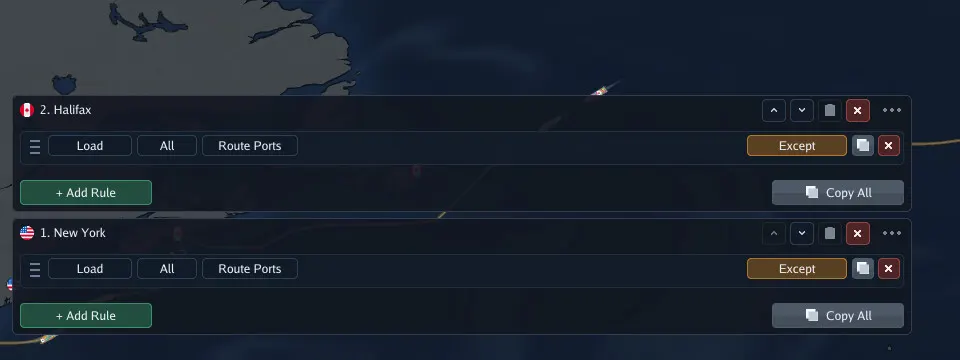
Each stop holds one or more rules. In the release screenshots a rule reads as a row of chips, for example Load · All · Route Ports · Except, with + Add Rule under it and Copy All to copy a stop’s rules to other stops.
| Rule | What it does | Typical use |
|---|---|---|
| Load | Pick up cargo at this stop | Every pickup port |
| Deliver (Unload) | Drop cargo bound for this port | Destination ports |
| Deliver + Load | Drop first, then load | Busy two-way ports |
| Store | Leave cargo at this port’s depot | Feeder hubs |
| Collect | Pick up stored cargo from a depot | Trunk routes calling at a hub |
Filters on a rule:
- Destination scope: a port, a country, a region, or Route Ports, which by its name covers cargo bound for the other stops on this route (one demo streamer admitted he was not sure what it meant, so test it on a short route first).
- Amount: All, a set value, or at least N TEU (one objective needed “Load at least 15”).
- Except: exclude specific destinations from the rule.
“Load · All · Route Ports” is the rule on every stop of the official New York to Rotterdam example, which makes it the natural starting point for a simple line.
Why is my ship not moving?
The five causes seen on stream, in the order to check them:
- No ship assigned, or you assigned it to the other route. The fleet list has optional columns; add the route column so you can see it at a glance.
- You steered it by hand. Taking manual command of an assigned ship unassigns it.
- Nothing to load. Exports at a port change over time, and a rule filtered to one destination can find zero cargo. Widen the filter (country or region instead of one port).
- A port on the route is closed. “Route blocked. Port closure. Natural disaster” means it waits. See port closures.
- License trouble. “Cannot route to current port” and “License limit reached” errors stopped one streamer’s fleet; the fix was simplifying to a two-port shuttle and refunding a license.
Fleet-wide settings
From the fleet settings icon:
- Speed control: “All ships use this throttle setting” (one stream used 50%, another a moderate preset). Lower throttle trades time for running cost.
- Maintenance threshold: ships at or below the chosen condition are sent for repair automatically. Ports repair only up to a cap (25%, 50% or 70% depending on facilities), so send damaged ships to a port with Good facilities rather than the nearest one.
Feeder networks
Once you own a depot, rules can store cargo at a hub and collect it later. That is how small island ports feed a trunk route. Walkthrough in depots and feeder routes.
Thanks. Logged for the next revision.